Search

DesignProcessTechnologyValue, A Conversation

Conversation regarding the architectural design process, and the technologies used.

Tag

hardware

FTP VPN OMG!

You likely have at least a simple understanding of how you connect in your office: wireless, Bluetooth, CAT 5, etc, but don’t forget or overlook other methods of connecting to your office and to your client – or how they connect to you.

VPN,

FTP,

& Dropbox to name a few.

How do you share files, information, and ideas? How can you share something with a client that is over the 5 or 10MB limits they probably have?

  • Email? Probably not.
  • Burn a disk? Those days are swiftly passing…going, going, soon gone?
  • Thumb drive? Sure, if you are okay with giving away a thumb drive every time you want to give a large file to someone (they say they’ll return them – they don’t).

We have utilized several options to connect and share files with others outside the office, with ourselves within the office, and with our mobile devices wherever we are.

Let’s consider FTP for a moment – File Transfer Protocol has been around for awhile. It lets you host a drive in your office (or in the cloud, I suspect) where you can control access of others as they retrieve files from you or upload files to you for design purposes.

But my firm  utilizes Apple devices. Guess what? Apple doesn’t allow or accommodate FTP hosting with their operating system.They may now, but it would be through some APP that you then have to purchase and maintain – it is in my opinion this has just not been something Apple has wanted to participate in.

That was one of the lessons we learned as we converted and drank the Cupertino kool-aide.

All in all, it has not been a problem.

We did host an FTP site at one time – in our Windows world – and as a result had to:

issue instructions to log-in,

access and

use the site with established permissions and protocols.

While it was a bit high maintenance, it did allow us to monitor, control, and otherwise be the gatekeepers of who saw what, when, and where.

We utilized a software called Cute FTP and, despite the very non-technical name, it worked great. This was a good system that worked well  through monitoring efforts and management of access log-ins and passwords. Now things are a little simpler – or so it would seem.

Enter Dropbox. 

Free(!) Dropbox.

Regarding the design process, Dropbox has been the answer to the maiden’s prayer for years. Dropbox allows for sharing files in a multitude of ways – from attaching file links in emails, sharing folders that allow download and upload, and apps that link automatically into your dropbox account to files located there.

One word of caution:

Dropbox loads up your computer if you are not ready for it. We use it a LOT in our office and have found whatever you have in your dropbox account, you also have on your hard drive.

YES. That’s right.

While Dropbox is in the cloud and extremely flexible, it is ALSO resident on your computer…this means every file in your account.

EVERY file – yours and those that have been shared with you. I’m not saying this is wrong, just a little known fact. The capacity of your account also needs to be accounted for on your hard drive – don’t accept invitations to large shared folders if you don’t have the space in your dropbox account AND your hard drive.

We have found it historically does not like to transfer really large files – we’re talking giga-bites of information – because they are suspected to be pirated movies. While we completely respect this concern, we have never found a way to get a large file we created to successfully transfer to other devices (specifically iPads, iPhones, etc.) through Dropbox.

But there is work around, so for now we enjoy Dropbox.
In all fairness, there are a variety of competitors. More power to them. We have tried some – OwnCloud and Citrix to name two – but we have found there is almost always a limitation or a catch – a required OS or difficult user interface (you shouldn’t have to know how to code or work in DOS to set these things up).

We have found Dropbox to be the most intuitive and universally known software of this type – and used by our clients as well – to the point that this is where we have landed for now.

VPN. Virtual Private Network.

The acronym is generic enough, the actual name doesn’t explain much to me at all, but it works great…basically providing the ability to log-in to your office and connect to all the files, printers, computers, etc. you would need as if you were in the office (which you aren’t if you are utilizing VPN connectivity).

Have you ever needed to access files from your office at home, in a hotel room in another city? VPN.

Have you ever needed to print something in your office while you aren’t there? VPN.

It does require some geekiness to set up and establish protocols. Find the nerd in the office, wind them up, let them go, and get out of their way.
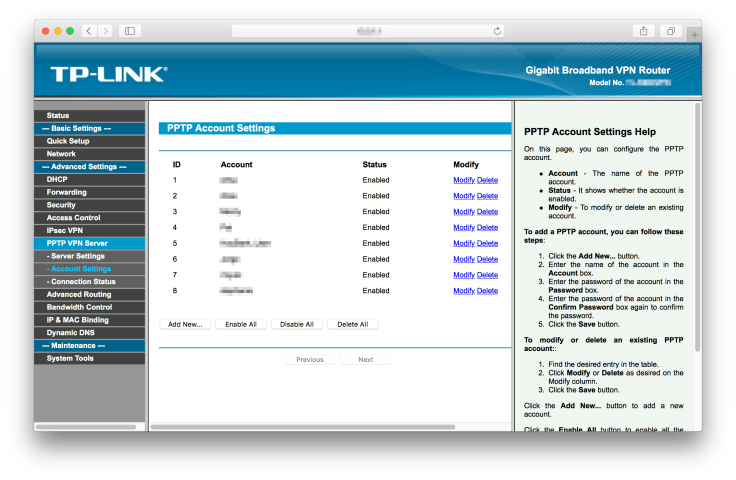
screen-shot-2017-03-01-at-8-47-49-amWith establishment of a VPN router (hardware), VPN gateway (software), and established protocols (user accounts, log-ins, passwords and permissions – choices in software setup) you will be working in your office while you are not IN your office – it’s really quite cool.

It also lets you be productive at all times: business trip, vacation, home…your’e still “in the office.” So try VPN – you’ll be plugged in all the time.

With some caveats:

  • Windows does VPN really well.
  • It typically requires internet access – you will need that.
  • Apple used to do VPN – then quit. Literally, without warning.

We updated our OS to Sierra on our Apple computers and discovered they no longer “do” VPN. Just like that, the ability was gone.

Their answer? You guessed it – an app. This one is called Shimo and was (after about 30 frustrating minutes) immediately  purchased, installed, and working. We have had some update needs to keep things current, but all this is to say there is apparently always an app for that.

VPN is great.

Management of the protocols and permissions allow everyone to access the office/design process and be plugged in – literally – at all times.

Bottom line:

  • There is no reason why you have to be disconnected from the office, or your clients, or your design process.
  • Ideas happen when they happen; they are not 9 to 5 – they never were, they never will be.
  • Design is not a sterile “only in the office” process, but you can literally now take the office with you if you desire to.

VPN, FTP, Dropbox et al – all allow flexible, intuitive, 24/7 access to your design process, not just for you – but your clients as well.

This design process truly now has no limits – no down time.

What are you waiting for?
Hooked Up, Plugged In.

How connected are you?

Are you hooked up, plugged in?

These are all terms we have heard before – but regarding IT? Do you know how you are using your connections?

Wireless? Bluetooth? Hardwired?

Hopefully these are things you don’t have to worry about, but you better know the ways you are “connected” – otherwise you will find a time when you discover you have been functionally illiterate, working and productive until you suddenly aren’t, and you don’t know why.

Usually the timing of events are not convenient or beneficial to anyone. Making a presentation, downloading or uploading a large file, or needing to allow a client to connect as part of a design meeting – times when you need everything to run smoothly. Events like this seldom have a great recovery – keep them as few and as far between as possible. We have one client that I swear has bad IT juju and brings technology  – almost no matter what kind – to a screeching halt. Does that sound familiar? Be prepared for anything. Know what your reaction will be if connections won’t work – Plan B, C, and D.

Nimbleness in connectivity and command of at least the concepts of your software and hardware is critical. Sure, you can have someone be the gate keeper of things, but at least know the basics of how your devices are working with each other – or not working – so you don’t find yourself in a tight spot with no idea of how to wiggle out.

Can you diagram your IT world – your software and hardware? And their connectivity? Do this. Share it with your office. Have your IT folks correct you – and they will.

Recognize the difference between a router and a switch.

Know which devices need restarting, what passwords and admin log-ins are for those devices. Do you share access with others? Be ready to assist them in connecting.

Regarding the basic means of connections, I suggest you know the following:

Hardwired:

There are several versions: Cat-5, USB, HDMI, VGA, MIDI, RCA, etc – most are falling away as time marches on, so for now we will focus on CAT-5 (CAT-6 is out there as well and coming on strong).

Always – always go hardwired if you can. For what will soon become evident if it hasn’t yet, hardwired connections are the most reliable connections you can have. No dropped signals, no interruptions of other devices  – one pipe of data quickly moving from one machine to another. Speed is king. KING, I tell you. If you want fast and reliable, go hardwired. In your office, in your conference room, even in your hotel room.

Drawbacks?

The hard. wire. It cannot be denied.

A physical connection restricts. You have to conceal it, step over it, sometimes even pass it around like a joint…in meetings it seems like the Little Feat song, “don’t bogart that joint, my friend…” Sometimes you have to share the hardwire.

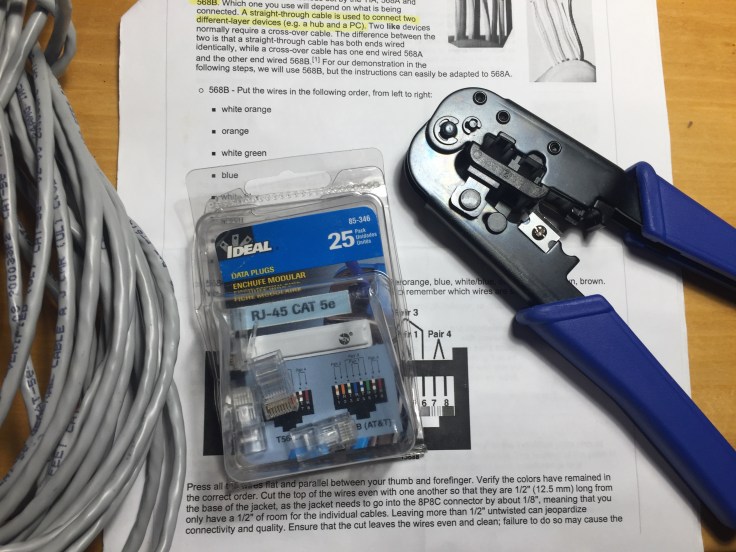
Do you know how to make a cat-5 connection? With the purchase of a few items you can be the master of your connectivity.

img_7849-copy

Parts needed:

  • Wire (CAT-5 or some better version)
  • Crimping tool (beware, the knife blades are sharper than sharp).
  • Instructions and patience

Look at your devices – make sure they are all at the fastest speeds you can get. If one is slow, they ALL are slow. Check your switches and routers to make sure they are coordinated in speeds. Differences can be in factors of ten, so it makes a real difference.

Look at the wiring demarks and switches – are the different network cables labeled and marked? Are they organized? How about the data ports you plug into? Label these – keep record of them and you will be able to plug-n-play, swap, and adjust as needed. If you don’t, you will be forever trying to figure out what “they” did as they placed your lines.

Seriously, knowing this makes you much less dependent upon others. It’s not that complicated and it makes communicating with your IT staff much easier.

Wireless:

img_1439

This is the connectivities club’s sexy, cool kid. Everyone wants wireless.

Wireless wants to be as dependable as hardwired, and it almost is.

Wireless is infinitely more flexible and accommodating, allowing almost endless combinations of applications of hardware and devices. But beware of conflicts and surprises…

We use wireless to connect everything in our office from computers to our network, computers to Apple TV, and computers to our stereo, but it is not without its problems. You don’t want your Pandora station to start playing on your Apple TV during a meeting in the conference room…unless it’s a really cool station and a really cool client.

Wireless is probably the hardest working connectivity we use – it connects each user to our 3D printer, Pandora, Spotify, Stereo, and Apple TV. But we have to make sure it’s secure.

Case in point: I have had my dry cleaners down the street ask if they could jump on our wireless signal.

Ever use a hot-spot on your phone? Wireless. Protect it. Turn it off when not in use! Your data plan will thank you.

Keep it secure. Keep it secure. Keep it secure.

Consider the clients connecting in your office. They can – and should – be able to go wireless in order to have meaningful conversations and access info they need. But keep it secure! Maybe it’s a separate guest wireless account or other security measures (additional log-ins to go past guest-level access). There are several possibilities.

Then there’s BlueTooth.

unnamed

I never paid much attention to Bluetooth, it has been the lesser of the methods of connectivity until now. You have an Apple Watch? You are probably utilizing Bluetooth. How about an Apple Pencil? Bluetooth. We utilize Bluetooth mainly on a personal level with personal devices.

If I could have a wish for Apple and Bluetooth, I’d wish that iPad Pros could be drawn on by more than one Apple Pencil at a time – collaboration is stalled slightly when you realize you can’t draw on someone else’s iPad with YOUR Apple Pencil – c’mon Apple, allow piling on here.

All this is to say the flexibility, redundancy, and options for connectivity make your network for design processes a web. Simplifying and managing this web will make you design world cleaner and efficient. You’ll be the better for it.

Wonder how involved this can be? We are an office of 8. And have 70+ connections of wireless and Bluetooth systems. Each device has an IP address, MAC address, and other qualifying information to keep track of. To see this in action in your world let me suggest FING as an app to consider. We have it and use it to organize and troubleshoot conflicts, disconnects, etc.

Knowing the basics of connectivity, the nuances between them, and how to mange them will keep you working, your work flowing, and the conversations going.

When was the last time you looked behind the curtain of your connectivity? Check your speeds, organization, and security. You’ll be glad you did.

Now we can start conversation about what to do with all this connectivity…stay tuned.

Blog at WordPress.com.

Up ↑